Category: Blog

  • asus-wmi-hotkeys-driver

    Asus WMI hotkeys driver

    License: GPLv2 GitHub commits Badge

    The driver works as middle-man and can be especially handy when events are not supported by kernel module / distro code yet. The driver is listening for events of devices added by default (Asus keyboard and Asus WMI hotkeys) or re-defined devices in custom configuration (e.g. Lid Switch and Asus WMI accel tablet mode). When is appropriate event caught then is handled by custom configuration. For example, can be toggled LED status or changed content of the control file (e.g. fan modes), sent another key event, or executed custom command. Configuration examples are here or predefined layouts here.

    If you find the project useful, do not forget to give project a GitHub stars People already did!

    BuyMeACoffee

    Changelog

    CHANGELOG.md

    Features

    • Allowed listen to events not only from devices Asus keyboard or Asus WMI hotkeys
    • Allowed to send custom commands (e.g. xinput enable 19)
    • Allowed to fix any stateful binary switches (e.g. switch lid state, switch tablet-mode state)
    • Allowed to fix any special Fn+ key including associated LED (directly via debugfs or kernel modules brightness files) or control files with multiple possible int values (e.g. kernel modules files throttle_thermal_policy[0,1,2])

    Requirements

    • (Optionally for LEDs without kernel modules yet) have mounted debugfs to /sys/kernel/debug/asus-nb-wmi from kernel modules asus-wmi, asus-nb-wmi

    Installation

    Get the latest dev version using git

    $ git clone https://github.com/asus-linux-drivers/asus-wmi-hotkeys-driver

    $ cd asus-wmi-hotkeys-driver

    and install

    $ bash install.sh

    or run separate parts of the install script

    • run whenever the user logs in (do NOT run as $ sudo, works via systemctl --user)
    $ bash install_service.sh

    Uninstallation

    To uninstall run

    $ bash uninstall.sh

    or run separate parts of the uninstall script

    $ bash uninstall_service.sh

    Setup

    How to discover the key value and bind it to something else using this driver.

    • Find the event ID of Asus WMI hotkeys for example like this:
    $ libinput debug-events
    ...
    -event4 DEVICE_ADDED Asus WMI hotkeys seat0 default group9 cap:ksudo evemu-record /dev/input/event4
    ...
    
    • Listen for found event number and press the key you want bind to something else for example using $ sudo evtest /dev/input/event4 (which returns already hex values) or $ sudo evemu-record /dev/input/event4 (where values has to be converted from decimal to hex):
    $ sudo apt install evtest
    $ sudo evtest
    ...
    /dev/input/event4:	Asus WMI hotkeys
    ...
    Select the device event number [0-24]: 4
    
    Event: time 1695811053.452927, type 4 (EV_MSC), code 4 (MSC_SCAN), value 7c
    Event: time 1695811053.452927, type 1 (EV_KEY), code 248 (KEY_MICMUTE), value 1
    Event: time 1695811053.452927, -------------- SYN_REPORT ------------
    Event: time 1695811053.452938, type 1 (EV_KEY), code 248 (KEY_MICMUTE), value 0
    Event: time 1695811053.452938, -------------- SYN_REPORT ------------
    Event: time 1695811057.648891, type 4 (EV_MSC), code 4 (MSC_SCAN), value 85
    Event: time 1695811057.648891, type 1 (EV_KEY), code 212 (KEY_CAMERA), value 1
    Event: time 1695811057.648891, -------------- SYN_REPORT ------------
    Event: time 1695811057.648901, type 1 (EV_KEY), code 212 (KEY_CAMERA), value 0
    Event: time 1695811057.648901, -------------- SYN_REPORT ------------
    Event: time 1695811059.000888, type 4 (EV_MSC), code 4 (MSC_SCAN), value 6b
    Event: time 1695811059.000888, type 1 (EV_KEY), code 191 (KEY_F21), value 1
    Event: time 1695811059.000888, -------------- SYN_REPORT ------------
    Event: time 1695811059.000898, type 1 (EV_KEY), code 191 (KEY_F21), value 0
    Event: time 1695811059.000898, -------------- SYN_REPORT ------------
    
    $ sudo apt-get install evemu-tools
    $ sudo evemu-record /dev/input/event4
    ...
    E: 0.000001 0004 0004 0107	# EV_MSC / MSC_SCAN             107
    E: 0.000001 0001 00bf 0001	# EV_KEY / KEY_F21              1
    E: 0.000001 0000 0000 0000	# ------------ SYN_REPORT (0) ---------- +0ms
    E: 0.000024 0001 00bf 0000	# EV_KEY / KEY_F21              0
    E: 0.000024 0000 0000 0000	# ------------ SYN_REPORT (0) ---------- +0ms
    E: 2.476044 0004 0004 0124	# EV_MSC / MSC_SCAN             124
    E: 2.476044 0001 00f8 0001	# EV_KEY / KEY_MICMUTE          1
    E: 2.476044 0000 0000 0000	# ------------ SYN_REPORT (0) ---------- +2476ms
    E: 2.476066 0001 00f8 0000	# EV_KEY / KEY_MICMUTE          0
    E: 2.476066 0000 0000 0000	# ------------ SYN_REPORT (0) ---------- +0ms
    E: 2.792149 0004 0004 0133	# EV_MSC / MSC_SCAN             133
    E: 2.792149 0001 00d4 0001	# EV_KEY / KEY_CAMERA           1
    E: 2.792149 0000 0000 0000	# ------------ SYN_REPORT (0) ---------- +316ms
    E: 2.792178 0001 00d4 0000	# EV_KEY / KEY_CAMERA           0
    E: 2.792178 0000 0000 0000	# ------------ SYN_REPORT (0) ---------- +0ms
    SE: 5.003936 0004 0004 0134	# EV_MSC / MSC_SCAN             134
    E: 5.003936 0001 0094 0001	# EV_KEY / KEY_PROG1            1
    E: 5.003936 0000 0000 0000	# ------------ SYN_REPORT (0) ---------- +2211ms
    E: 5.003972 0001 0094 0000	# EV_KEY / KEY_PROG1            0
    E: 5.003972 0000 0000 0000	# ------------ SYN_REPORT (0) ---------- +0ms
    
    • Discovered EV_MSC / MSC_SCAN value use in hexa format in config as well as appropriate key to which you want to bind that key, for example:
    from libevdev import EV_KEY
    
    KEY_WMI_TOUCHPAD = 0x6B # 107
    
    key_wmi_touchpad = [
        KEY_WMI_TOUCHPAD,
        EV_KEY.KEY_TOUCHPAD_TOGGLE
    ]
    
    keys_wmi = [
        key_wmi_touchpad
    ]
    

    How to discover new LED value? Run file sudo bash tests/test_devid.sh (but FIRST! change range of tested range of ids in script row number 5 for example to 60000..60100, do not worry, value is tried to set up to 1 hex on 1s (pause between testing each device id) and then is reverted back previously exist value so script changes nothing) and during running check by eyes whether is LED activated.

    • Discovered keys and associated LEDs up to this moment that might be equal across models:

    Model: UP5401EA & UN5401QAB

    KEY_WMI_TOUCHPAD = 0x6B # 107
    KEY_WMI_MICMUTE = 0x7C # 124
    KEY_WMI_CAMERA = 0x85 # 133
    KEY_WMI_MYASUS = 0x86 # 134
    
    KEY_WMI_MICMUTE_LED = '/sys/class/leds/platform::micmute/brightness' # or 0x00040017
    KEY_WMI_CAMERA_LED = 0x00060079
    
    # LEDs 0x00060079 and 0x00040017 can be found in DSDT.dsl table too
    ...
    If ((IIA0 == 0x00060079))
    {
     If ((IIA1 == One))
     {
      SGOV (0x05, Zero)
     }
     ElseIf ((IIA1 == Zero))
     {
      SGOV (0x05, Ones)
     }
    
     Return (One)
    }
    
    If ((IIA0 == 0x00040017))
    {
     If ((IIA1 == One))
     {
      SGOV (0x59, Zero)
     }
     Else
     {
      SGOV (0x59, Ones)
     }
    
     Return (One)
    }
    ...
    

    Model: UX8402

    KEY_WMI_SCREENPAD = 0x6A #106
    KEY_WMI_SWITCHWINDOWS = 0x9C #156
    

    Model: UX582X

    KEY_WMI_FAN = 0x9D # 157
    

    Model: GU603ZI

    KEY_WMI_FAN = -13565778 # ff3100ae
    
    KEY_WMI_FAN_THROTTLE_THERNAL_POLICY = '/sys/devices/platform/asus-nb-wmi/throttle_thermal_policy'
    KEY_WMI_FAN_THROTTLE_THERNAL_POLICY_VALUES = [
        0,
        1,
        2
    ]
    

    Model: unknown

    KEY_WMI_CAMERA_LED = 0x00060078 # https://github.com/Plippo/asus-wmi-screenpad/blob/keyboard_camera_led/inc/asus-wmi.h
    

    Configuration

    For example:

    # fix only key
    key_wmi_camera = [
        KEY_WMI_CAMERA,
        EV_KEY.SOME_KEY
    ]
    # fix only led
    key_wmi_camera = [
        KEY_WMI_CAMERA,
        KEY_WMI_CAMERA_LED
    ]
    # fix key and fix led too
    key_wmi_camera = [
        KEY_WMI_CAMERA,
        KEY_WMI_CAMERA_LED
        EV_KEY.SOME_KEY
    ]
    # fix only controlling file with multiple values (e.g. fan key with allowed modes 0,1,2)
    KEY_WMI_FAN_THROTTLE_THERNAL_POLICY = '/sys/devices/platform/asus-nb-wmi/throttle_thermal_policy'
    KEY_WMI_FAN_THROTTLE_THERNAL_POLICY_VALUES = [
        0,
        1,
        2
    ]
    key_wmi_fan = [
        EV_KEY.KEY_PROG4,
        [
            KEY_WMI_FAN_THROTTLE_THERNAL_POLICY,
            KEY_WMI_FAN_THROTTLE_THERNAL_POLICY_VALUES
    
        ]
    ]
    # fix by custom command (disable keyboard, touchpad, ..)
    key_wmi_tablet_mode_disable_keyboard = [
        InputEvent(EV_SW.SW_TABLET_MODE, 1), # or e.g. EV_SW.SW_LID
        'xinput disable 19'
    ]
    
    key_wmi_tablet_mode_enable_keyboard = [
        InputEvent(EV_SW.SW_TABLET_MODE, 0),
        'xinput enable 19'
    ]
    # fix event for the specific device
    allowed_listen_to_devices = [
        "Asus keyboard",              # listening by default
        "Asus WMI hotkeys",           # listening by default
        "Lid Switch",                 # NOT listening by default
        "Asus WMI accel tablet mode", # NOT listening by default
    ]
    

    Backup configuration is up to you as the repository contains only examples for easy getting started. Config is located here:

    $ cat "/usr/share/asus_wmi_hotkeys-driver/keys_wmi_layouts/layout.py"
    

    Troubleshooting

    To activate the logger, do this in a console:

    $ LOG=DEBUG sudo -E ./asus_wmi_hotkeys.py
    

    Existing similar projects

    Existing related projects

    Visit original content creator repository
  • locust-istio

    Locust-istio

    Python scripts to enable Locust to send traffic to a istio ingressgateway which will handle traffic for multiple hostnames.

    Rationale

    Some challenges I faced while using locust to test traffic on istio service mesh.

    1. In a development test setup these hostname may not get resolved by DNS. So traffic need to resolve IP address manually like in “–connect-to” flag in curl

    2. Many times traffic is sent to a ClusterIP service or a NodePort service (if user does not want a waste a LB from their LB pool.

    3. Deployment of locust in Kubernetes is not an easy method.

    These python files will enable locust to handle these challenges. Also Helm is used to address the challenge of deployment in Kubernetes.

    LoadBalancer example with curl:

    curl https://bookinfo.example.com/productpage --connect-to bookinfo.example.com:443:**LB-IP**:443
    

    NodePort example with curl:

    curl https://bookinfo.example.com/productpage --connect-to bookinfo.example.com:443:**Node-IP**:**Nodeport-for-port-443**
    

    ClusterIP example with curl:

    curl https://bookinfo.example.com/productpage --connect-to bookinfo.example.com:443:**ClusterIP**:443
    

    Installation and Test steps

    Creating test setup

    For creating a test setup I used documentation given in “https://istio.io/latest/docs/setup/getting-started/“. For ease of reference

    curl -L https://istio.io/downloadIstio | sh -
    cd istio-1.20.2
    export PATH=$PWD/bin:$PATH
    istioctl install --set profile=demo -y
    
    kubectl create ns bookinfo0
    kubectl create ns bookinfo1
    kubectl apply -f samples/bookinfo/platform/kube/bookinfo.yaml -n bookinfo0
    kubectl apply -f samples/bookinfo/platform/kube/bookinfo.yaml -n bookinfo1
    

    Currently main script assumes “istio-ingressgateway” pod runs in istio-system namespace and associated gateways are installed in istio-system namespace.

    In the main script edit the sections “#getting service details” and “#getting hostnames” to change to your custom namespace, service and gateway labels.
    For testing the script use the example given in “bookinfo-gateway-vs.yaml” & “aegle-wildcard-secret.yaml”.

    kubectl apply -f aegle-wildcard-secret.yaml
    kubectl apply -f bookinfo-gateway-vs.yaml
    

    Install locust

    kubectl create ns locust
    
    kubectl create configmap my-loadtest-locustfile --from-file ./main.py -n locust
    kubectl create configmap my-loadtest-lib --from-file ./lib -n locust
    
    kubectl apply -f role.yaml
    
    helm repo add deliveryhero https://charts.deliveryhero.io/
    
    helm install locust deliveryhero/locust \
      --set loadtest.name=my-loadtest0 \
      --set loadtest.locust_locustfile_configmap=my-loadtest-locustfile \
      --set loadtest.locust_lib_configmap=my-loadtest-lib  -f values.yaml -n locust
    

    Start locust traffic

    1. Check locust master and worker pods are coming up.
    2. If there is a crash check the log outputs of pods and fix the python scripts if needed. Or if it is a infra (kubernetes / istio) related problem, fix it.
    3. If the python scripts are changed to fix step 2, unistall the helm and the configmaps used for installation. Redo the installation.
    4. Once pods are up you can port-forward the locust service and use browser to start test or monitor it as given.
      kubectl port-forward service/locust 8089:8089 -n locust
    5. Else you can use the locust APIs to start and monitor the test

    start the test (host=www.ddd.com does not matter, it takes value from gateway CR)

    kubectl port-forward service/locust 8089:8089 -n locust &
    sleep 5
    curl -X POST   http://localhost:8089/swarm   -H 'content-type: application/x-www-form-urlencoded; charset=UTF-8'   -d 'user_count=5&spawn_rate=1&host=www.ddd.com'
    sleep 2
    kill $(jobs -p | awk '{print $1}')
    sleep 10
    

    monitor the test

    unset a
    unset b
    kubectl port-forward service/locust 8089:8089 -n locust &
    sleep 5
    
    a=$(curl -s -X GET http://localhost:8089/stats/requests | jq '.stats[1].current_rps')
    b=$(curl -s -X GET http://localhost:8089/stats/requests | jq '.stats[1].num_failures')
    echo "######################################################################################## rate: $a"
    echo "######################################################################################## failure: $b"
    kill $(jobs -p | awk '{print $1}')
    sleep 2
    
    unset a
    unset b
    
    1. you can delete the locust pods or restart the locust deployments or delete the locust replicasets to stop the test.
      kubectl delete rs --all -n locust

    Visit original content creator repository

  • k2hdkc_dbaas

    K2HDKC DBaaS

    License GitHub forks GitHub stars GitHub issues

    About K2HDKC DBaaS

    K2HDKC DBaaS

    K2HDKC DBaaS Overview

    K2HDKC DBaaS (DataBase as a Service of K2HDKC) is a basic system that provides K2HDKC(K2Hash based Distributed Kvs Cluster) as a service.
    K2HDKC DBaaS (Database as a Service for K2HDKC) is a Database as a Service that uses K2HR3 and works with OpenStack and kubernetes to build a K2HDKC(K2Hash based Distributed Kvs Cluster) Cluster for distributed KVS.
    Users can easily launch, scale, back up, and restore K2HDKC clusters as K2HDKC DBaaS.

    Detailed documentation for K2HDKC DBaaS can be found here.

    Background

    Yahoo! JAPAN publishes some products as AntPickax as Open Source Software(OSS).
    We planned to provide one of them, K2HDKC(K2Hash based Distributed Kvs Cluster) as DBaaS(Database as a Service) so that anyone can easily use it.
    And the publicly available K2HR3(K2Hdkc based Resource and Roles and policy Rules) offers enough features to make this happen.
    We have built DBaaS(Database as a Service) in conjunction with OpenStack and kubernetes, centering on this K2HR3(K2Hdkc based Resource and Roles and policy Rules).

    Components for K2HKDC DBaaS system

    K2HDKC DBaaS (Database as a Service for K2HDKC) is configured using the following products which is provided by AntPickax.

    • K2HDKC – K2Hash based Distributed Kvs Cluster
      This product is distributed KVS(Key Value Store) clustering system and the core product of K2HDKC DBaaS.
    • CHMPX – Consistent Hashing Mq inProcess data eXchange
      This product is communication middleware over the network for sending binary data and an important component responsible for K2HDKC communication.
    • K2HR3 – K2Hdkc based Resource and Roles and policy Rules
      This is extended RBAC (Role Based Access Control) system, and this system manages the configuration of the K2HDKC cluster as a backend for K2HDKC DBaaS.

    K2HKDC DBaaS types

    There are four types of DBaaS (Database as a Service) provided by K2HDKC DBaaS (Database as a Service for K2HDKC) as shown below.
    We provide two K2HDKC DBaaS types that cooperate with OpenStack and two types that cooperate with kubernetes.

    With Trove(Trove is Database as a Service for OpenStack)

    This is DBaaS(Database as a Service) using Trove which is a product of OpenStack.
    It incorporates K2HDKC (Distributed KVS) as one of Trove’s databases to realize DBaaS(Database as a Service).
    The source code is k2hdkc_dbaas_trove.

    K2HDKC DBaaS CLI(Command Line Interface) for OpenStack

    If you have an existing OpenStack environment, this K2HDKC DBaaS CLI(Command Line Interface) allows you to implement DBaaS(Database as a Service) without any changes.
    The source code is k2hdkc_dbaas_cli.

    K2HDKC DBaaS on kubernetes CLI(Command Line Interface)

    If you are using kubernetes cluster or trial environment such as minikube, this K2HDKC DBaaS on kubernetes CLI(Command Line Interface) allows you to implement DBaaS(Database as a Service) without any changes.
    The source code is k2hdkc_dbaas_k8s_cli.

    K2HDKC Helm Chart

    If you are using kubernetes cluster or trial environment such as minikube, you can install(build) DBaaS(Database as a Service) by using Helm(The package manager for Kubernetes) with K2HDKC Helm Chart.
    The source code is k2hdkc_helm_chart.

    Documents

    K2HDKC DBaaS Document
    Github wiki page

    About k2hdkc Document
    About chmpx Document
    About k2hr3 Document

    About AntPickax

    Repositories

    k2hdkc_dbaas_trove
    k2hdkc_dbaas_cli
    k2hdkc_dbaas_k8s_cli
    k2hdkc_dbaas_override_conf

    k2hdkc
    chmpx

    k2hr3
    k2hr3_app
    k2hr3_api
    k2hr3_cli
    k2hr3_get_resource

    Packages

    k2hdkc-trove(Docker image)
    k2hdkc-trove-backup(Docker image)
    k2hdkc-dbaas-cli(packagecloud.io)
    k2hdkc-dbaas-k8s-cli(packagecloud.io)
    k2hdkc-dbaas-override-conf(packagecloud.io)

    k2hdkc(packagecloud.io)
    chmpx(packagecloud.io)

    k2hr3-app(npm packages)
    k2hr3-api(npm packages)
    k2hr3-cli(packagecloud.io)
    k2hr3-get-resource(packagecloud.io)

    License

    This software is released under the 2.0 version of the Apache License, see the license file.

    AntPickax

    K2HDKC DBaaS is one of AntPickax products.

    Copyright(C) 2020 Yahoo Japan Corporation.

    Visit original content creator repository
  • Digi-Akhbaar

    Digi-Akhbaar


    A multi-lingual news app.

    Keeping everyone updated with all kinds of news is the concept behind my application. The goal is to create a News Feed app that gives a user regularly-updated news from the internet related to a particular topic, person, or location. In this project, I have used the News API. This is a well-maintained API that returns information in a JSON format. “Digi Akhbaar” as the name implies means “A Digital newspaper”. The “Digi Akhbaar App” comes up with many exciting features.

    Features

    1.) A very simple user-friendly UI that can be handled easily by a layman.

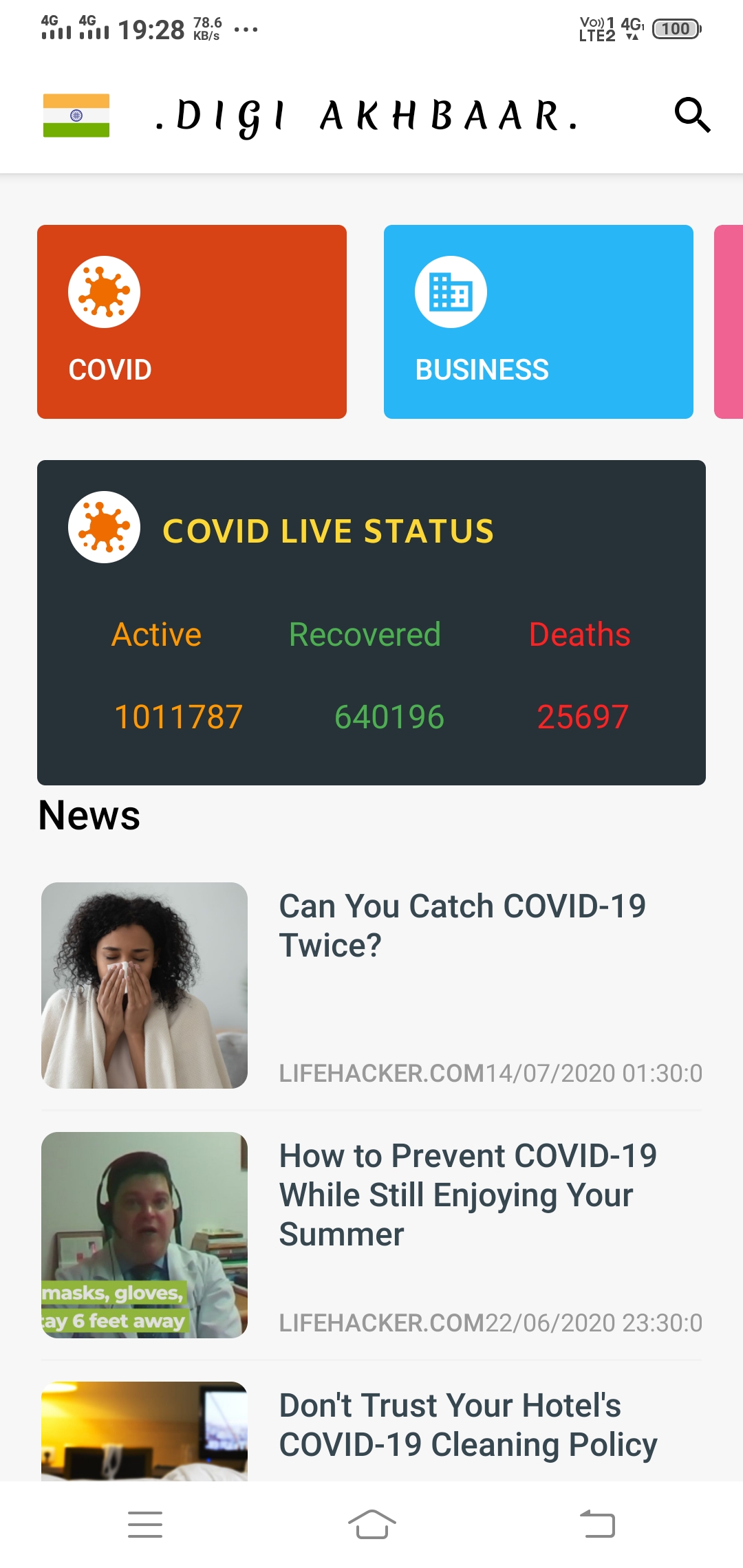
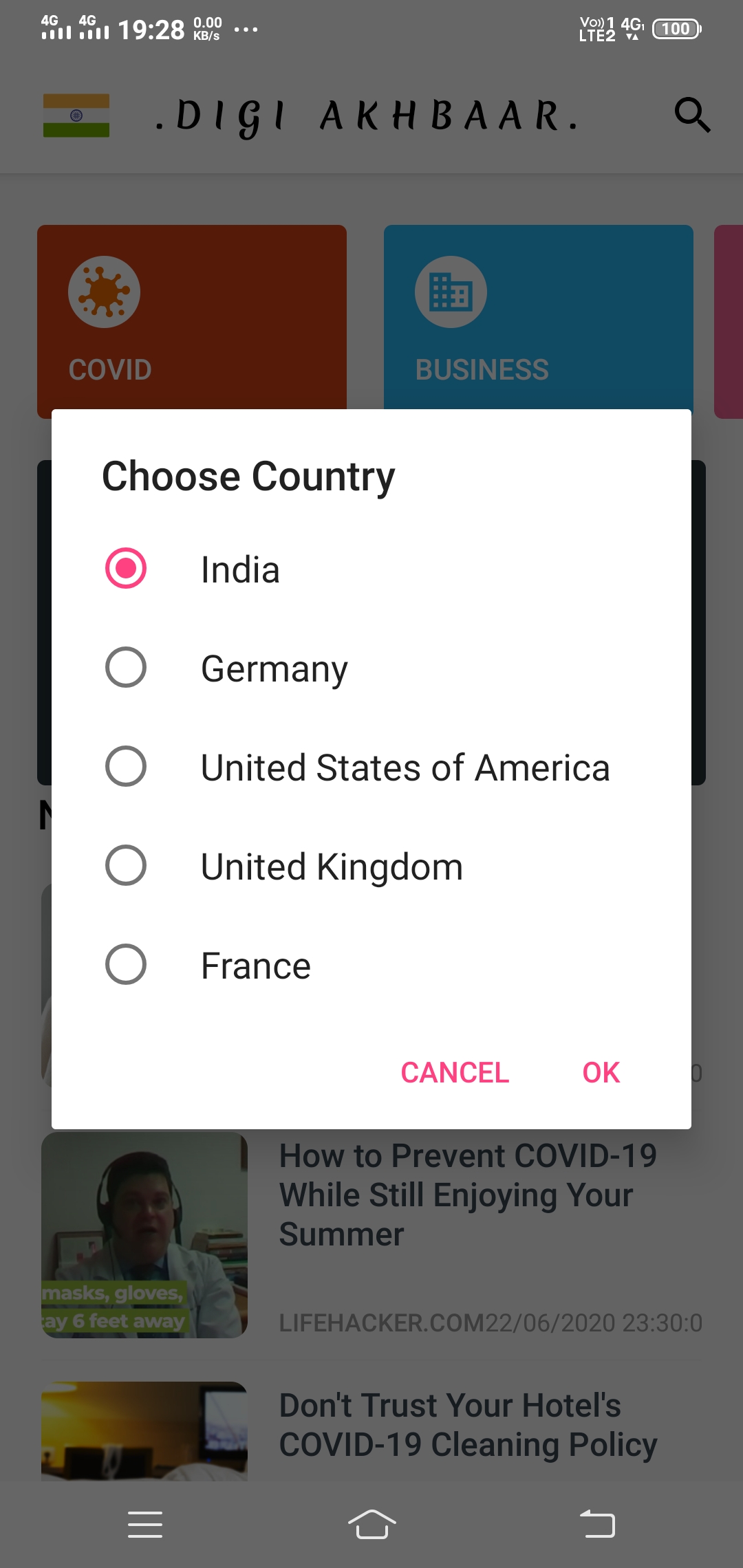
    2.) Five different countries’ news is currently available in the app. The countries are India, Germany, the USA, the UK, and France.

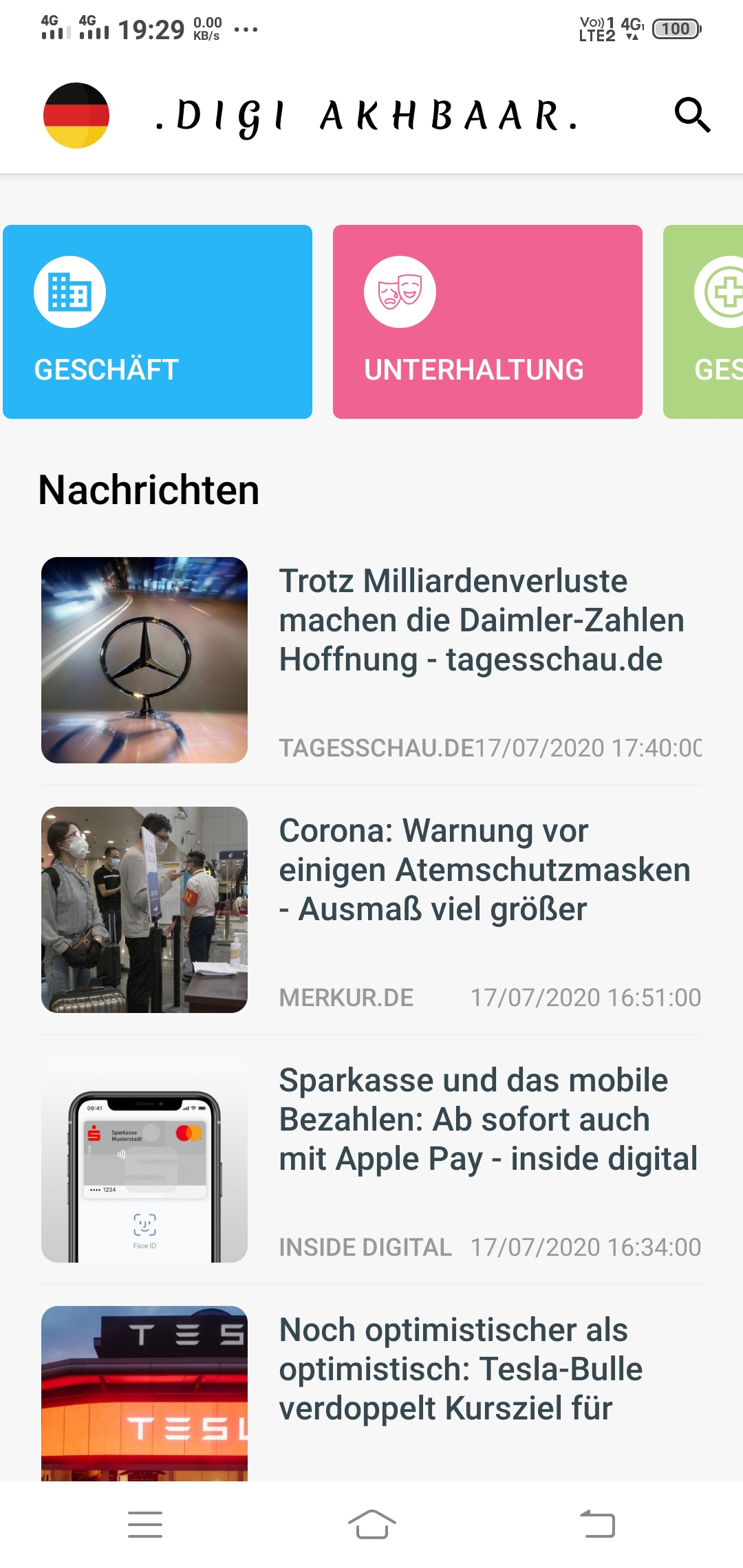
    3.) With the change of country or region, the language of the news also changes. For example: For Germany news, the app will automatically turn into german.

    4.) Get live COVID updates of respective countries within the app.

    5.) Users can search for any news using the search bar.

    6.) Usage of retrofit and news API makes news feed appear both quickly and with less traffic.

    7.) Fast and secure browsing of news is available in the app itself. Users can view the complete news within the app itself.

    8.) The app is completely available for all android versions starting from Android 4.0 to Android 10.0, satisfying 98.1 % of the whole world users.

    9.) Users can browse the news based on categories like Entertainment, business, etc.

    10.) The app size is around 5mb which makes the user not spend much data to download.

    11.) Above all the benefits the app is really fast and easy to handle.

    Application Architecture

    • IDE: Android Studio
    • API: News API
    • Architecture: MVVM
    • Programming Language: Java
    • Third-Party Libraries: Retrofit, Glide, ButterKnife, Gson
    • Libraries used: DataBinding, ViewModel, Recycler View, Material Design, LiveData.

    Screenshots

    Links:

    Visit original content creator repository
  • deduce

    deduce

    NPM version Downloads Build Status Coverage Status Tip

    Ridiculously easy JavaScript state containers with reducer methods. Like Redux without all of the boilerplate.

    Install

    npm install --save deduce
    

    Usage

    // reducers.js
    
    export function increment(state, val = 1) {
        return state + val;
    }
    
    export function decrement(state, val = 1) {
        return increment(state, -val);
    }
    
    // store.js
    
    import deduce from 'deduce';
    import * as reducers from './reducers';
    
    const store = deduce(1, reducers);
    
    store.addListener(() => {
        console.log(store.state);
    });
    
    store.increment();  // -> 2
    store.increment(2); // -> 4
    store.decrement();  // -> 3
    store.decrement(2); // -> 1

    API

    deduce(initialState, reducers) : Store

    • initialState {*}
    • reducers {Object<String,Function>}

    Store

    .state

    Current state of the store.

    const store = deduce({ foo: 1 });
    
    console.log(store.state); // -> { foo: 1 }

    .addReducers(reducers): Store

    • reducers {Object<String,Function>}

    Registers reducers to modify the state. Chainable.

    store.addReducers({
        increment(state, val) {
            return {
                ...state,
                foo: state.foo + val,
            };
        },
    });

    .addReducersFor(property, reducers): Store

    • property {String}
    • reducers {Object<String,Function>}

    Registers reducers to modify a specific state property. Chainable.

    store.addReducersFor('foo', {
        increment(state, val) {
            return state + val;
        },
    });

    .addListener(callback): Function

    • callback {Function}

    Adds a listener to be called any time the state is updated. Returns a function to remove the listener.

    const removeListener = store.addListener(() => {
        console.log(store.state);
    });
    
    store.increment();

    Why?

    The typical Redux patterns entail a lot of boilerplate. The documented and accepted patterns for reducing boilerplate really just swap one kind for another:

    Redux Example

    Consider the following Redux example that creates a store with two numbers: foo which may be incremented and bar which may be decremented.

    // foo
    
    const FOO_INCREMENT = 'FOO_INCREMENT';
    
    const fooInitial = 0;
    
    const fooReducers = {
        [FOO_INCREMENT]: (state = fooInitial, action) {
            return state + action.payload;
        }
    };
    
    function foo(state = {}, action) {
        if (action.type in fooReducers) {
            return fooReducers[action.type](state, action);
        }
    
        return state;
    }
    
    function createFooIncrementAction(payload) {
        return {
            type: FOO_INCREMENT,
            payload
        };
    }
    
    // bar
    
    const BAR_DECREMENT = 'BAR_DECREMENT';
    
    const barInitial = 0;
    
    const barReducers = {
        [BAR_DECREMENT]: (state = barInitial, action) {
            return state - action.payload;
        }
    };
    
    function bar(state, action) {
        if (action.type in barReducers) {
            return barReducers[action.type](state, action);
        }
    
        return state;
    }
    
    function createBarDecrementAction(payload) {
        return {
            type: BAR_DECREMENT,
            payload
        };
    }
    
    // store
    
    import { createStore, combineReducers } from 'redux';
    
    const reducer = combineReducers({ foo, bar });
    const store = createStore(reducer, {});
    
    // application
    
    store.dispatch(createFooIncrementAction(1));
    store.dispatch(createBarDecrementAction(1));
    
    console.log(store.getState());
    // {
    //   foo: 1,
    //   bar: -1
    // }

    Split that up into modules and you can see how new-comers could easily be overwhelmed when the underlying principles are beautifully clean and simple.

    Deduce Example

    Compare the above with this deduce example that does the same thing:

    // foo
    
    const fooInitial = 0;
    
    const fooReducers = {
        incrementFoo(state = fooInitial, val) {
            return state + val;
        }
    };
    
    // bar
    
    const barInitial = 0;
    
    const barReducers = {
        decrementBar(state = barInitial, val) {
            return state - val;
        }
    };
    
    // store
    
    import deduce from 'deduce';
    
    const store = deduce()
        .addReducersFor('foo', fooReducers)
        .addReducersFor('bar', barReducers);
    
    // application
    
    store.incrementFoo(1);
    store.decrementBar(1);
    
    console.log(store.state);
    // {
    //   foo: 1,
    //   bar: -1
    // }

    Contribute

    Standards for this project, including tests, code coverage, and semantics are enforced with a build tool. Pull requests must include passing tests with 100% code coverage and no linting errors.

    Test

    $ npm test
    

    MIT © Shannon Moeller

    Visit original content creator repository
  • buster

    Bulldog A Cache Buster Called Buster

    Buster busts your browser cache problems!

    Version

    v1.2.1

    Features

    • Cache busts your project’s files in place.

    • Fingerprints (renames) files based on their content using MD5 hash-based cache busting file names.

    • Replaces references in files to original file names with their MD5 hash-based file names.

    • Optionally outputs a manifest file to buster.manifest.json.

    • Simple and intuitive configuration using .buster.json.

    • Invokable via the command line and scriptable.

    • Easily integrates into your project workflow.

    Installation

    Install Globally

    This is the ideal solution if you want to use Buster as a general utility from the command line.

    $ npm install -g @4awpawz/buster
    

    Install Locally

    This is the ideal solution if you want to integrate Buster into your project.

    $ npm install --save-dev @4awpawz/buster
    

    Important

    • Buster Is Destructive. Buster does not make backups of your files. Buster performs its operations directly on the files that operational directives indicate. See “A Typical Buster Workflow” below.

    • Versions prior to v1.1.0 generated hashes based solely on the content of the files targeted by its operational directives. This opened up the opportunity for clashes on files that had no content. To address this issue, beginning with v1.1.0, Buster will generates unique hashes for all files by including the path of the file targeted by operational directives as well as its content.

    Buster Primer

    Site Relative File Paths And Site Relative URLs

    In the documentation that follows, references are made to site relative file paths and to site relative URLs.

    1. “site relative file paths” pertain strictly to your project’s file structure. They are used to declare the input in operational directives when declaring the file paths to assets in your project that you want targeted by Buster for cache busting.

    2. “Site relative URLs” pertain strictly to your website’s runtime environment and are used to reference assets throughout your site (e.g. the src attribute of an img tag, the href attribute of a link tag, the URL() CSS function declared inside of a CSS stylesheet).

    The important thing here is to understand that in order for Buster to perform its cache busting you, the developer, must insure that your site employs site relative URLs when referencing its assets. This is because Buster converts your site relative file paths to site relative URLs which it then uses to search the content of your site’s files for site relative URLs that need to be updated to point to the assets it has fingerprinted with unique hashes.

    A Typical Buster Work Flow

    Your development build tool generates your production ready site (as opposed to development) into your project’s release folder. When configuring Buster to cache bust your site, you would target your project files in the release folder by using site relative file paths in your Buster configuration’s operational directives. Then from the root of your project you can use the command line to run Buster to cache bust your site in the release folder. You can then run your site from the release folder to insure that it is functioning as expected and once it is determined that it is functioning as expected you can then deploy your site directly from the release folder to its server using a command line utility such as rsync.

    In a typical website project with the following or similar project structure

    |- myproject
    |- |- release/
    |- |- |- media/
    |- |- |- |- housecat.jpg
    |- |- |- index.html
    |- |- .buster.json
    

    the site relative file path used in an operational directive to target housecat.jpg would be release/media/housecat.jpg and the site relative URL used to identify the image file in the browser would be media/housecat.jpg.

    Operational Directives

    Buster employs a concept called an Operational Directive, abbreviated od, which you declare in your .buster.json configuration file and which Buster uses to direct the operations it performs on your project’s files. Each od is comprised of 2 parts, an input, and an operation.

    Input

    A site relative file path to one or more files.

    Supports globs/wildcard patterns.

    Important Buster assumes that all site relative file paths are relative to process.cwd().

    Important Buster implements its glob support using node package glob. Please refer to node package glob should you need additional information on using globs with Buster.

    Operation

    Indicates the actions that Buster is to perform on the od’s input file(s). It is a number preceded by a colon which separates the number from the input (e.g. “:1”). The following 3 operations are currently supported:

    :1

    Apply this operation only to those files whose own file names are to be fingerprinted for cache busting purposes (e.g. .jpg, .gif, .map).

    The format of each unique MD5 hash-based file name will be [original file’s base name].[unique hash].[original file’s extension] (e.g. cat.[unique hash].jpg). Should the original file’s base name contain 1 or more periods (e.g. main.js.map) the format of the MD5 hash-based file name will, as an example, be main.[unique hash].js.map.

    :2

    Apply this operation only to those files whose contents are to be searched for site relative URLs that point to assets whose file names have been fingerprinted and therefor need to be updated and whose own file names are not to be fingerprinted for cache busting purposes (e.g. .html).

    :3

    Apply this operation only to those files whose own file names are to be fingerprinted for cache busting purposes and whose contents are to be searched for site relative URLs that point to assets whose file names have been fingerprinted and therefor need to be updated (e.g. .css).

    Hashed File Name Format

    The format of each unique MD5 hash-based file name will be [original file’s base name].[unique hash].[original file’s extension] (e.g. cat.[unique hash].jpg). Should the original file’s base name contain 1 or more periods (e.g. main.js.map) the format of the MD5 hash-based file name will, as an example, be main.[unique hash].js.map.

    Operational Directive Examples

    Example Operational Directives Using Site Relative File Path:

    Given the following project structure

    |- myproject
    |- |- release/
    |- |- |- media/
    |- |- |- |- housecat.jpg
    |- |- |- index.html => contains img tag with a site relative url for its src i.e. <img src="https://github.com/media/housecat.jpg">
    |- |- .buster.json
    

    and running Buster from the command line in the myproject folder with the following operational directives

    `release/media/housecat.jpg:1`
    `release/index.html:2`
    

    will result in the following:

    |- myproject
    |- |- release/
    |- |- |- media/
    |- |- |- |- housecat.[unique hash].jpg
    |- |- |- index.html => now contains img tag whose src attribute points to hashed img i.e. <img src="https://github.com/media/housecat.[unique hash].jpg">
    |- |- .buster.json
    

    Example Operational Directives Using Site Relative File Paths And Globs:

    Given the following project structure

    |- myproject
    |- |- release/
    |- |- |- media/
    |- |- |- |- housecat.jpg
    |- |- |- |- purringcat.jpg
    |- |- |- |- bigcats/
    |- |- |- |- |- lion.jpg
    |- |- |- |- |- tiger.jpg
    |- |- |- index.html => contains img tags with site relative urls for its src e.g. <img src="https://github.com/media/housecat.jpg">, <img src="/media/bigcats/lion.jpg">
    |- |- .buster.json
    

    and running Buster with the following directives

    `release/media/**/*.jpg:1
    `release/**/*.html:2`
    

    will result as follows:

    |- myproject
    |- |- release/
    |- |- |- media/
    |- |- |- |- housecat.[unique hash].jpg
    |- |- |- |- purringcat.[unique hash].jpg
    |- |- |- |- bigcats/
    |- |- |- |- |- lion.[unique hash].jpg
    |- |- |- |- |- tiger.[unique hash].jpg
    |- |- |- index.html => now contains img tags whose src attributes point to hashed img i.e. <img src="https://github.com/media/housecat.[unique hash].jpg">, <img src="/media/bigcats/lion.[unique hash].jpg">
    |- |- .buster.json
    

    buster.json Configuration

    Important Buster expects .buster.json to reside in your project’s root folder, alongside package.json.

    {
        "options": {
            "manifest": true,
            "verbose": true,
            "ignore": "media/original/**/*.jpg,media/original/**/*.gif"
        },
        "directives": [
            "release/media/**/*.jpg:1",
            "release/./index.html:2",
            "release/css/test.css:3",
            "release/script/test.js:3"
        ]
    }

    Options

    Buster supports the following configuration options:

    ignore

    A quoted list of one or more comma separated site relative file paths to files that are to be ignored, defaults to "".

    Supports globs and wildcard characters patterns.

    manifest

    A boolean, true to save the manifest to buster.manifest.json in the project’s root folder, defaults to false.

    verbose

    A boolean, true to output verbose logging, defaults to false.

    Typical Workflows

    Integrating Buster Into Your Project’s Workflow

    Install Buster locally:

    myproject > $ npm install -D @4awpawz/buster

    Then create a .buster.json configuration file in your project’s root folder, alongside package.json:

    {
        "directives": [
            "release/media/**/*.jpg:1",
            "release/css/**/*.css.map:1",
            "release/scripts/**/*.js.map:1",
            "release/**/*.html:2",
            "release/css/**/*.css:3",
            "release/scripts/**/*.js:3"
        ]
    }

    Then add the following to your project’s package.json’s scripts property:

    "scripts": {
        "bust": "buster"
    }

    You can then run buster from the command line by invoking it as follows:

    myproject > npm run bust

    Calling Buster From Within A Script

    Buster can be called from within a script, allowing it to be used as part of a greater workflow:

    const buster = require("@4awpawz/buster");
    
    const paramsConfig = {
        options: {
            manifest: true
        },
        directives: [
            "release/media/**/*.jpg:1",
            "release/css/**/*.css.map:1",
            "release/scripts/**/*.js.map:1",
            "release/**/*.html:2",
            "release/css/**/*.css:3",
            "release/scripts/**/*.js:3"
        ]
    }
    
    await buster(paramsConfig);

    Filing Bugs And Feature Requests

    Changelog

    v1.2.1

    This release only encompasses changes to the project’s README.md file, specifically for the addition of the solicitation to ‘Buy me a coffee’.

    v1.1.1

    This release only encompasses changes to the project’s documentation in this README.md file.

    v1.1.0

    This release includes an improved hashing algorithm that generates unique hashes for all files, including those that have no content.

    v1.0.0

    This is the first major release of Buster and incorporates many breaking changes from prior versions. Most notably, prior versions had a “safe mode” configuration option that would instruct Buster to cache bust “in place”, meaning that it would not create backups and would not be able to restore files to their prior state. As it turns out, the vast majority of Buster’s users are using “safe mode” because it fits their workflow of generating their site into a dedicated folder that can be cache busted and that could easily be repopulated by just regenerating the site. These changes were implemented to refactor Buster to precisely match this typical workflow.

    v0.3.1

    This release addresses fixes for security warnings for packages used internally by Buster only. There are no changes to the code base.

    v0.3.0

    This release addresses one bug and fixes for security warnings for packages used internally by Buster only. Also landing with this release is reduced console output; use the verbose config option if needed.

    Major bug fixes:

    • Addresses issue #14 which could cause Buster to mangle hashed file names. Please note that beginning with this release, Buster now generates hashed file names as [hash]-[file name].[file extension]. You are strongly advised to upgrade your projects and rebuild them.

    v0.2.4

    This release addresses fixes for security warnings for packages used internally by Buster only. There are no changes to the code base.

    v0.2.3

    Major bug fixes:

    • Addresses issue #13 which would cause Buster to crash when reading a configuration file that doesn’t exist.

    • Addresses issue #12 which would cause Buster to crash when setting paramsConfig to a default value of {} to indicate that it wasn’t passed.

    v0.2.2

    This release includes no changes to the code base.

    • Addresses issue #11 which seeks to lockdown all project dependencies including descendants using NPM’s shrinkwrap.

    v0.2.1

    Major and minor bug fixes – includes but not limited to the following:

    • Addresses issue 10 which would cause buster to fail when reading command line configuration data belonging to the application that launched it with paramsConfig.

    • Addresses issue #9 which would sometimes cause restore to fail. This fix totally replaces the one introduced in v0.2.0, and now handles the issue earlier in the restore processing cycle.

    v0.2.0

    Major refactor – includes but not limited to the following:

    • Introduces experimental “safe mode” feature, resolves #6.

    • v0.1.6 breaks handling of backup files bug, fixes #5.

    • Removes hashed files from the manifest returned by glob during restore.

    • Implements new resolution of destination paths.

    • Removes the “file-exists” package from the project.

    • Catching some async exceptions to prevent unresolved promise exceptions.

    • Configuration attempts to resolve from paramsConfig (i.e. passed via a script) first.

    • Updated README.md

    v0.1.6

    • Addresses a bug in command-line processing which would cause Buster to crash when the user enters only “bust” or “restore” from the command-line.

    • Addresses a bug in od processing which would cause Buster to crash when attempting to create folders that already exist.

    • Addresses a bug in od processing which would cause Buster to crash when attempting to delete files that no longer exist.

    Copyright And License

    Copyright © 2018, Jeffrey Schwartz. Released under the MIT license.

    Community

    For help, discussion about best practices, or any other conversation that would benefit from being searchable:

    Discuss Buster on Github

    For casual conversation with others about using Buster:

    Discuss Buster on Twitter and other social media..

    Show Your Appreciation

    image

    Please 👀 watch and leave us a 🌟 star. 🙂

    Visit original content creator repository
  • docs

    Auth0 Documentation

    This repository contains the Auth0 Quickstarts, but most other documentation content in this repository is no longer up to date, and is not the source of content at https://auth0.com/docs. Pull requests and issues for Quickstarts can still be submitted here, but most other content is no longer hosted on GitHub and therefore no longer open-source. If you are an Auth0 employee trying to make a change to other documentation, please submit a ticket or contact the Documentation Team to request access to our content management system.

    Please review the Contributing Guidelines before sending a PR or opening an issue.

    • If you are looking for the application that hosts the Docs content, see auth0-docs.
    • If you would like to modify the Management API v2 API docs, they are generated from the api2 repository.

    Both of the above repositories require team access.

    Editing Docs Content

    Auth0 Docs are no longer maintained in this Github repository. Employees can request access to our content management system to update Docs directly. Outside contributors can submit requests under the Issues section in this repository.

    Editing Quickstart Content

    • You can edit the Quickstarts by using the GitHub web editor and editing a file. This is best suited for typos and small changes.
    • You can also pull down the /docs repo to your computer via Git and edit files in your local editor before pushing a new branch (or a branch to your own fork of the project). You can then go to GitHub.com and start a PR. We will be able to review the changes in a Heroku test application prior to merging.
    • Lastly, you can run and test the docs site locally (access available to Auth0 employees only). This option is best suited for repeat contributors or for complex contributions. You gain the benefit of locally testing and viewing your changed or added pages, navigation, and config, but you also gain the complexity of dealing with the local docs app, setting it up, and keeping it updated.

    Regardless of which option you use, please review any relevant sections of the Contributing Guidelines before sending a PR.

    Issue Reporting

    If you find a bug or inaccuracy in the documentation content, please report it in this repository’s issues section. Please do not report security vulnerabilities on the public GitHub issue tracker. The Responsible Disclosure Program details the procedure for disclosing security issues.

    Author

    Auth0

    License

    This project is licensed under the MIT license. See the LICENSE file for more info.

    Visit original content creator repository

  • react-native-bottom-bar

    React Native Bottom Bar

    Battle Tested ✅

    Fully customizable, unique shaped bottom bar component for React Native.

    npm version npm License: MIT

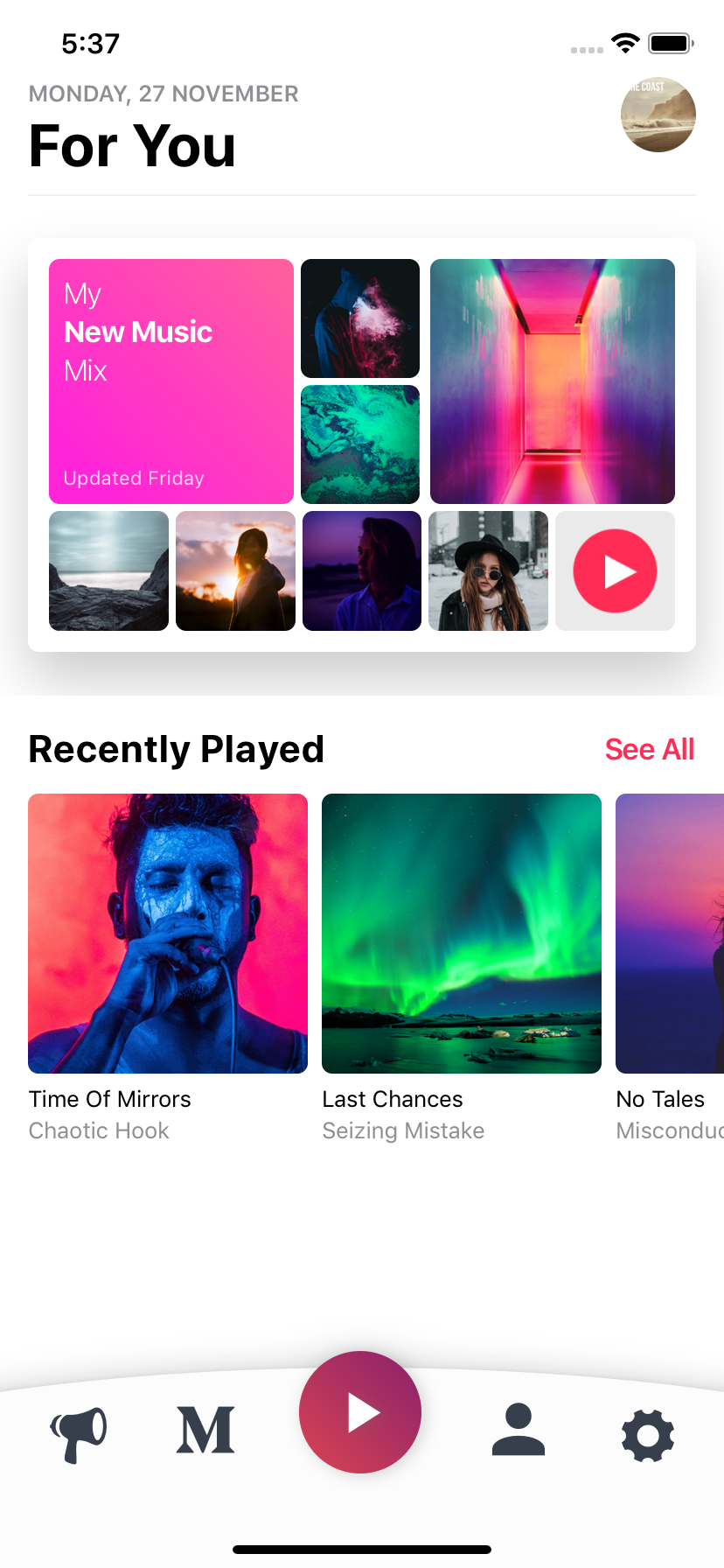
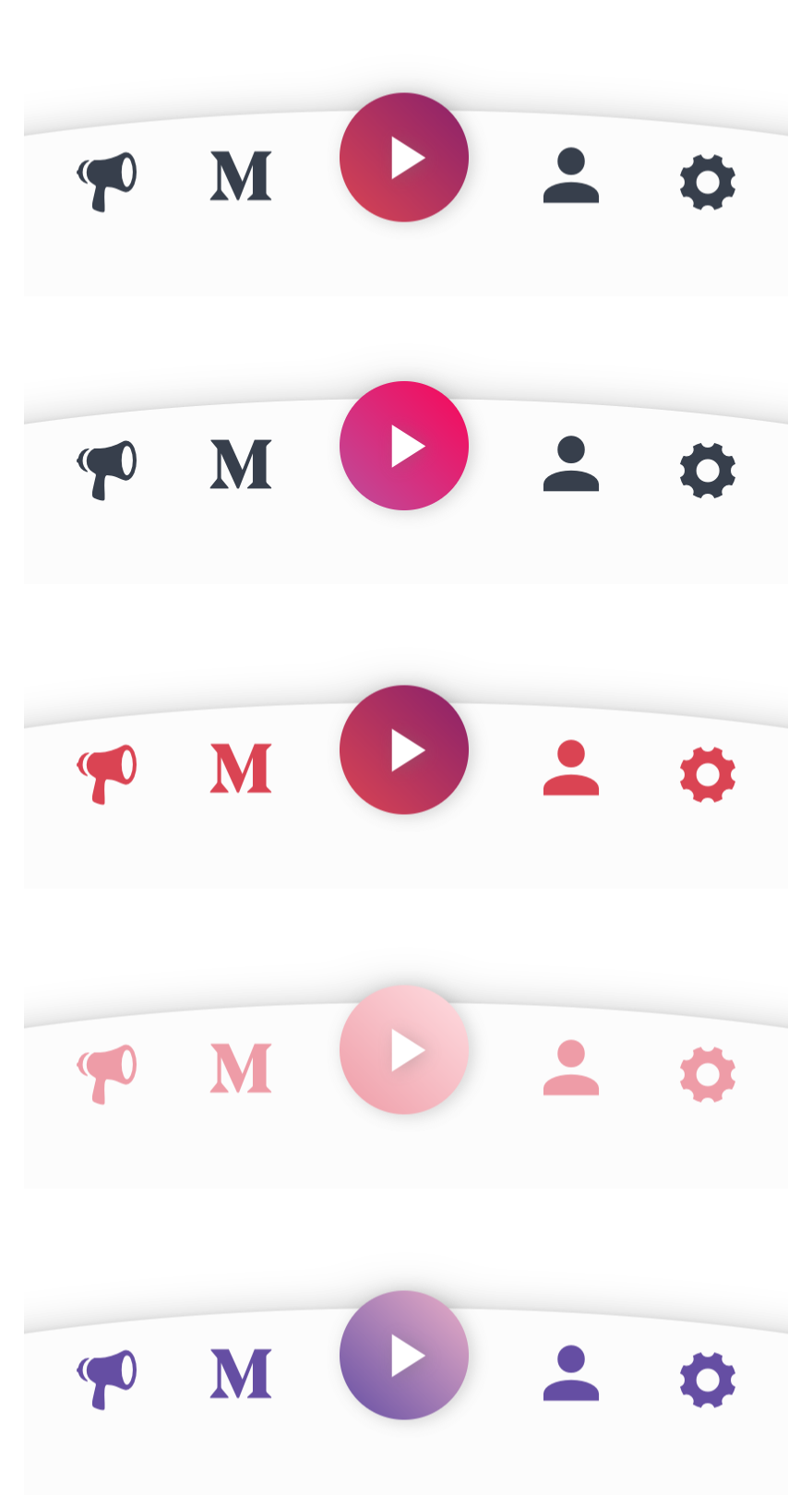
    React Native Bottom Bar React Native Bottom Bar

    Installation

    Add the dependency:

    Pure React Native :

    npm i react-native-bottom-bar

    Expo Version :

    "react-native-bottom-bar": "WrathChaos/react-native-bottom-bar#expo"

    Peer Dependencies :

    You must install these dependencies!

    "@freakycoder/react-native-helpers": ">= 1.0.0",
    "react-native-androw": ">= 0.0.31",
    "react-native-vector-icons": ">= 6.0.0",
    "react-native-linear-gradient": ">= 2.4.x",
    "react-native-dynamic-vector-icons": ">= x.x.x"

    Usage

    <BottomBar
      style={style}
      shapeColor={shapeColor}
      mainIcon={mainIcon}
      mainIconColor={mainIconColor}
      mainIconGradient={mainIconGradient}
      mainIconComponent={mainIconComponent}
      miniButtonsColor={miniButtonsColor}
      firstIconComponent={firstIconComponent}
      secondIconComponent={secondIconComponent}
      thirdIconComponent={thirdIconComponent}
      fourthIconComponent={fourthIconComponent}
    />

    Example Application

    • I just shared the example project on Expo, simply run on your device to check what it is: via Expo OR check the code, and yes! 🙂 all of the images, screenshots are directly taken from the this example. Of course, you can simply clone the project and run the example on your own environment.

    Configuration – Props

    BottomBar:
    Property Type Default Description
    style style container use this to change the main BottomBar’s style
    shapeStyle style bottom:89 use this to change the main BottomBar’s Shape style
    shapeColor color #FBFBFD use this to change the unique shape’s color
    mainIcon component icon changes the main big button’s icon type
    mainIconColor color #FFFFFF changes the main big button’s icon color
    mainIconGradient array blue gradient changes the main big button’s gradient color
    mainIconComponent component MainIconButton(Gradient Icon based button) Make your own button on the main one
    miniButtonsColor color null changes the mini buttons color with a single prop
    firstIconComponent component MiniButton(simple icon button) renders your own component as a first button
    secondIconComponent component MiniButton(simple icon button) renders your own component as a second button
    thirdIconComponent component MiniButton(simple icon button) renders your own component as a third button
    fourthIconComponent component MiniButton(simple icon button) renders your own component as a fourth button
    disableFirstIcon boolean false disable the first icon button
    disableSecondIcon boolean false disable the second icon button
    disableThirdIcon boolean false disable the third icon button
    disableFourthIcon boolean false disable the fourth icon button

    Credits

    Thank you RN Typography Team for the ShowcaseScreen 🙂 It has a great design.

    Author

    FreakyCoder, kurayogun@gmail.com

    License

    React Native Bottom Bar Library is available under the MIT license. See the LICENSE file for more info.

    Visit original content creator repository
  • kelvin

    Kelvin

    GitHub release Github All Releases Build Status Go Report Card license donate

    Meet Kelvin

    Kelvin is a little helper bot who will automate the lights in your house. Its job is to adjust the color temperature and brightness in your home based on your local sunrise and sunset times and custom intervals defined by you. Think of it as f.lux or Apple’s Night Shift for your home.

    Imagine your lights shine in an energetic but not too bright blue color to get you started in the early morning. On sunrise your lights will change to a more natural color temperature to reflect the sunlight outside. On sunset they will slowly fade to a warmer and softer color scheme perfectly suited to Netflix and chill. When it’s time to go to bed Kelvin will reduce the intensity even more to get you into a sleepy mood. It will keep this reduced setting through the night so you don’t get blinded by bright lights if you have to get up at night…

    Features

    • Adjust the color temperature and brightness of your lights based on the local sunrise and sunset times
    • Define fine grained daily schedules to fit your personal needs throughout the day for every single room
    • Define a default startup color and brightness for your lights
    • Gradual light transitions you won’t even notice
    • Works with smart switches as well as conventional switches
    • Activate via Hue Scene or automatically for every light you turn on
    • Respects manual light changes until a light is switched off and on again
    • Auto upgrade to seamlessly deliver improvements to you
    • Small, self contained binary with sane defaults and no dependencies to get you started right away
    • Free and open source

    Getting started

    If you want to give Kelvin a try, there are some things you will need to benefit from its services:

    • Supported Philips Hue (or compatible) lights
    • A configured Philips Hue bridge
    • A permanently running computer connected to your network (See Raspberry Pi)

    Got all these? Great, let’s get started!

    Installation

    1. Download the latest version of Kelvin from the Releases page.
    2. Extract the Kelvin archive.
    3. Start Kelvin by double-clicking kelvin.exe on Windows or by typing ./kelvin in your terminal on macOS, Linux and other Unix-based systems. You should see an output similar to the following snippet:
      2017/03/22 10:45:41 Kelvin v1.1.0 starting up... 🚀
      2017/03/22 10:45:41 Looking for updates...
      2017/03/22 10:45:41 ⚙ Default configuration generated
      2017/03/22 10:45:41 ⌘ No bridge configuration found. Starting local discovery...
      2017/03/22 10:45:44 ⌘ Found bridge. Starting user registration.
      PLEASE PUSH THE BLUE BUTTON ON YOUR HUE BRIDGE...
      
    4. Now you have to allow Kelvin to talk to your bridge by pushing the blue button on top of your physical Hue bridge. Kelvin will wait one minute for you to push the button. If you didn’t make it in time just start it again with step 3.
    5. Once you pushed the button you should see something like:
      2017/03/22 10:45:41 🤖 Kelvin starting up... 🚀
      2017/03/22 10:45:41 🤖 Looking for updates...
      2017/03/22 10:45:41 ⚙ Default configuration generated
      2017/03/22 10:45:41 ⌘ No bridge configuration found. Starting local discovery...
      2017/03/22 10:45:44 ⌘ Found bridge. Starting user registration.
      PLEASE PUSH THE BLUE BUTTON ON YOUR HUE BRIDGE... Success!
      2017/03/22 10:45:59 🤖 Devices found on current bridge:
      2017/03/22 10:45:59 | Name                 |  ID | On    | Dimmable | Temperature | Color |
      2017/03/22 10:45:59 | Dining table         |   5 | false | true     | true        | true  |
      2017/03/22 10:45:59 | Power outlet         |   6 | false | false    | false       | false |
      2017/03/22 10:45:59 | Window               |   1 | false | true     | true        | true  |
      2017/03/22 10:45:59 | Kitchen              |   2 | false | true     | true        | true  |
      2017/03/22 10:45:59 | Couch                |   3 | false | true     | true        | true  |
      2017/03/22 10:45:59 | Desk                 |   4 | false | true     | false       | true  |
      2017/03/22 10:45:59 Device Power outlet doesn't support any functionality we use. Exclude it from unnecessary polling.
      2017/03/22 10:45:59 🌍 Location not configured. Detecting by IP
      2017/03/22 10:45:59 🌍 Detected location: Hamburg, Germany (53.5553, 9.995).
      2017/03/22 10:45:59 🤖 Starting cyclic update...
      
    6. Wohoo! Kelvin is up and running! Well done!
    7. Kelvin is now managing your lights and will gradually adjust the color temperature and brightness for you. Give it a try by switching lights on and off to see how Kelvin reacts. If you want to adjust the default schedule to your needs, just read on and edit the configuration.

    Docker

    As an alternative to manual installation you can also pull the official docker image from docker hub.

    • Get the image by running docker pull stefanwichmann/kelvin
    • Start a container via docker run -d -e TZ=Europe/Berlin -p 8080:8080 stefanwichmann/kelvin (replace Europe/Berlin with your local timezone)
    • docker ps should now report your running container
    • Run docker logs {CONTAINER_ID} to see the kelvin output (You can get the valid ID from docker ps)
    • To adjust the configuration you should use the web interface running at http://{DOCKER_HOST_IP}:8080/.
    • If you want to keep your configuration over the lifetime of your container, you can map the folder /etc/opt/kelvin/ to your host filesystem. If you alter the configuration you have to restart Kelvin through the web interface or by running docker restart {CONTAINER_ID}.

    Configuration

    Kelvin will create it’s configuration file config.json in the current directory and store all necessary information to operate in it. By default it is fully usable and looks like this:

    {
      "bridge": {
        "ip": "192.168.10.37",
        "username": "lbCDGagZZ7JEYQX5iGxrjMIx2jIROgpXfsSjHmCv"
      },
      "location": {
        "latitude": 53.5553,
        "longitude": 9.995
      },
      "schedules": [
        {
          "name": "default",
          "associatedDeviceIDs": [1,2,3,4,5,6],
          "enableWhenLightsAppear": true,
          "defaultColorTemperature": 2750,
          "defaultBrightness": 100,
          "beforeSunrise": [
            {
              "time": "4:00",
              "colorTemperature": 2000,
              "brightness": 60
            }
          ],
          "afterSunset": [
            {
              "time": "20:00",
              "colorTemperature": 2300,
              "brightness": 80
            },
            {
              "time": "22:00",
              "colorTemperature": 2000,
              "brightness": 60
            }
          ]
        }
      ]
    }
    

    As the configuration file is a simple text file in JSON format you can display and edit it with you favorite text editor. Just make sure you keep the JSON structure valid. If something goes wrong fix it using JSONLint or just delete the config.json and let Kelvin generate a configuration from scratch.

    The configuration contains the following fields:

    Name Description
    bridge This element contains the IP and username of your Philips Hue bridge. Both values are usually obtained automatically. If the lookup fails you can fill in this details by hand. Learn more
    location This element contains the latitude and longitude of your location on earth. Both values are determined by your public IP. If this fails, is inaccurate or you want to change it manually just fill in your own coordinates.
    schedules This element contains an array of all your configured schedules. See below for a detailed description of a schedule configuration.

    Each schedule must be configured in the following format:

    Name Description
    name The name of this schedule. This is only used for better readability.
    associatedDeviceIDs A list of all devices/lights that should be managed according to this schedule. Kelvin will print an overview of all your devices on startup. You should use this to associate your lights with the right schedule. ATTENTION: Every light should be associated to only one schedule. If you skip an ID this device will be ignored.
    enableWhenLightsAppear If this element is set to true Kelvin will be activated automatically whenever you switch an associated light on. If set to false Kelvin won’t take over until you enable a Kelvin Scene or activate it via web interface.
    defaultColorTemperature This default color temperature will be used between sunrise and sunset. Valid values are between 1000K and 6500K. See Wikipedia for reference values. If you set this value to -1 Kelvin will ignore the color temperature and you can change it manually. ATTENTION: The supported color temperature minimum will vary between bulb models. Kelvin will respect these limits automatically.
    defaultBrightness This default brightness value will be used between sunrise and sunset. Valid values are between 0% and 100%. If you set this value to -1 Kelvin will ignore the brightness and you can change it manually.
    beforeSunrise This element contains a list of timestamps and their configuration you want to set between midnight and sunrise of any given day. The time value must follow the hh:mm format. colorTemperature and brightness must follow the same rules as the default values.
    afterSunset This element contains a list of timestamps and their configuration you want to set between sunset and midnight of any given day. The time value must follow the hh:mm format. colorTemperature and brightness must follow the same rules as the default values.

    After altering the configuration you have to restart Kelvin. Just kill the running instance (Ctrl+C or kill $PID) or send a HUP signal (kill -s HUP $PID) to the process to restart (unix only).

    Kelvin Scenes

    Kelvin has the ability to detect certain light scenes you have programmed in your hue system. If you activate one of these Kelvin scenes it will take control of the light and manage it for you. You can use this feature to reactivate Kelvin after manually changing the light state or to associate Kelvin with a certain button on your Hue Tap for example.

    In order to use this feature you have to create a scene in your Hue System via a Hue app. The name of this new scene has to contain the word kelvin and the name of the schedule you want to control. Once you saved this scene Kelvin will associate all relevant lights to it and update the state every minute to fit your schedule. Now you can simple activate this scene whenever you want to active Kelvin.

    Let’s look at an example:

    • Let’s assume you have a schedule called livingroom which should be activated only on the second tap of your Hue Tap.
    • Start a Hue app on your smartphone and create a new scene called Activate Kelvin in Livingroom or Livingroom (Kelvin). The exact name doesn’t matter as long as the words kelvin and the name of the schedule are part of this scene name.
    • Associate the new scene to the second tap on your Hue Tap and set the configuration value enableWhenLightsAppear to false in the schedule livingroom.
    • Restart Kelvin to activate the new configuration.
    • From now on Kelvin will only take control of the lights in the schedule livingroom if you activate the scene on the second tap.

    Raspberry Pi

    A Raspberry Pi is the perfect device to run Kelvin on. It’s cheap, it’s small and it consumes very little energy. Any model of the Raspberry Pi will be sufficient, but we don’t provide binary releases for revision 1 and the first generation Raspberry Pi Zero anymore. To set up Kelvin on a Raspberry Pi follow the installation guide here. Once your Raspberry Pi is up and running (booting, connected to your network and the internet) download the latest linux_armv7 release and follow the steps in Installation.

    Systemd setup on a RaspberryPi

    Running Kelvin as a systemd process provides an easily managed background process.

    There are a couple assumptions made:

    • Raspberry Pi is the hardware
    • Running Rasbian OS installed with defaults
    • Install path for Kelvin binary is /home/pi/kelvin/kelvin
    • Logged in as pi user, and have sudo user permissions

    Setup

    # Fetch release
    wget https://github.com/stefanwichmann/kelvin/releases/download/v1.3.4/kelvin_1.3.4_linux_armv5.tar.gz -O /tmp/kelvin-arm.tar.gz
    
    # Create user to run as
    sudo adduser --system --group --shell /bin/nologin --no-create-home --home /opt/kelvin kelvin
    
    # Install
    sudo mkdir -p /opt/kelvin
    cd /opt/kelvin
    sudo tar -xvzf /tmp/kelvin-arm.tar.gz
    sudo mv kelvin-linux-arm*/* .
    sudo rmdir kelvin-linux-arm*
    sudo chown -R kelvin:kelvin /opt/kelvin
    
    # Create service file for systemd
    sudo cp etc/kelvin.service /etc/systemd/system/kelvin.service
    
    # Start, then press hue button. Restart if necessary
    sudo systemctl start kelvin
    
    # Start on boot
    sudo systemctl enable kelvin
    
    # Confirm status
    sudo systemctl status kelvin
    
    # Clean up
    rm /tmp/kelvin-arm.tar.gz
    
    # Edit config to taste
    sudo -u kelvin -e /opt/kelvin/config.json
    sudo systemctl restart kelvin
    
    # Read Logs
    journalctl -fu kelvin.service

    If you are using Kelvin on a different system with Systemd you have to adjust the kelvin.service file according to your needs.

    Troubleshooting

    If anything goes wrong keep calm and follow these steps:

    1. Make sure the Philips Hue bridge is configured and working in your network. Kelvin will need it to communicate with your lights. If you got the Hue app running on your smartphone you should be fine. Otherwise follow the Philips Hue manual to configure your lights.

    2. To identify the IP address of your bridge open this link in your browser. After you got the IP address enter http://<bridge IP address>/debug/clip.html into your browser. You should see the debug page of you hue bridge. If this fails please follow the Philips Hue manual to configure your bridge.

    3. Make sure the Philips Hue bridge is reachable from the computer Kelvin will run on. Enter the command ping <bridge IP address> in a terminal window or on a remote console. You should see packages reaching the destination IP address. If this fails you might have a network issue.

    4. Make sure you downloaded the latest release for your operating system and CPU architecture. If you are not sure stick to the most appropriate amd64 release or arm if you are using a Raspberry Pi.

    5. If all this doesn’t help, feel free to open an issue on github.

    How Kelvin works

    In order to decide if Kelvin suits your needs and works in your setup, it helps to understand it’s inner workings and behavior. In a nutshells Kelvin uses your Philips Hue bridge to talk to all the Hue lights in your home and will automatically configure them according to the schedules in your configuration file. In order to do this it will request the current state of every light every two seconds. For this state Kelvin differentiates three possible scenarios:

    1. The light is turned on: Kelvin will calculate the appropriate color temperature and brightness, send it to the light and safe this state.
    2. The light is turned on but it’s state was changed since the last update: Kelvin detects that you have manually changed the state (for example by activating a custom scene) and will stop managing the state for you.
    3. The light is turned off: Kelvin will clear the last known state and do nothing.

    Development & Participation

    If you want to tinker with Kelvin and it’s inner workings, feel free to do so. Kelvin uses the Go Modules support built into Go 1.11. To get started you can simply clone the main repository outside of GOPATH by executing the following commands (feel free to change src to the directory of your choice):

    mkdir $HOME/src
    cd $HOME/src
    git clone https://github.com/stefanwichmann/kelvin.git
    cd kelvin
    go build
    

    Make sure you have set up your go development environment by following the steps in the official documentation.

    If you have ideas how to improve Kelvin I will gladly accept pull requests from your forks or discuss them with you through an issue.

    Visit original content creator repository